
For each calendar you have setup in LeaveCal you can:
-
Create Calendar feeds for Google/Outlook/Apple calendars
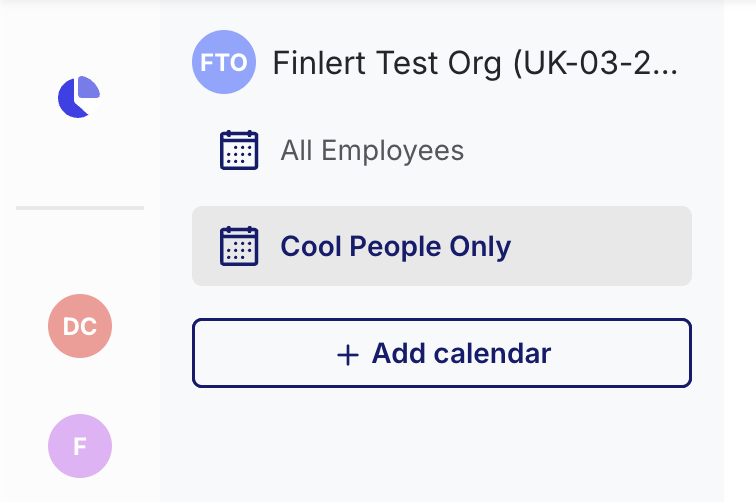
When you first setup LeaveCal we create a default 'All Employees' calendar for your whole organisation (with the name of your company).
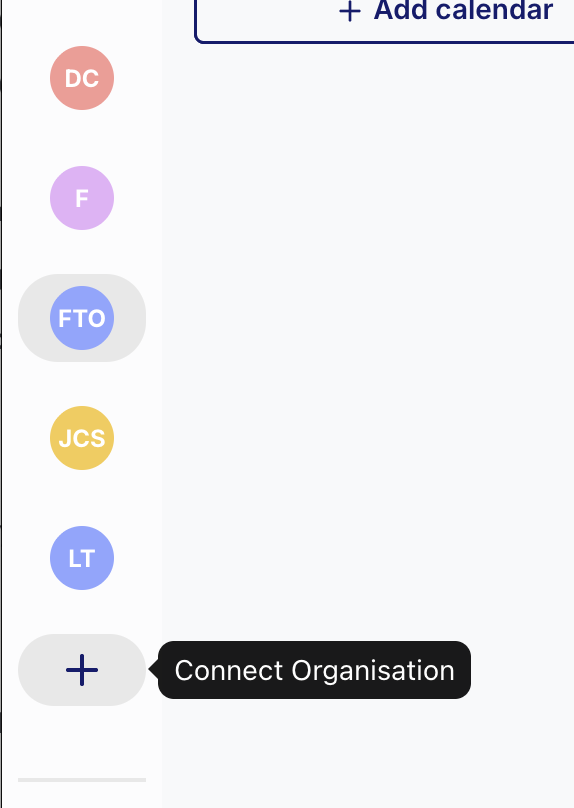
You can also add other Xero organisations by going to the leftmost nav and hitting the big plus under your existing Xero organisations. dropdown menu under you name and selecting 'Xero Connection'. Here you can add New Connections. Or from the settings page in the Xero tab.
It is also possible to create sub-calendars for specific Employee Groups, or create your own group. Click ‘+ Add Calendar’ in the left sub-menu to create a new calendar.
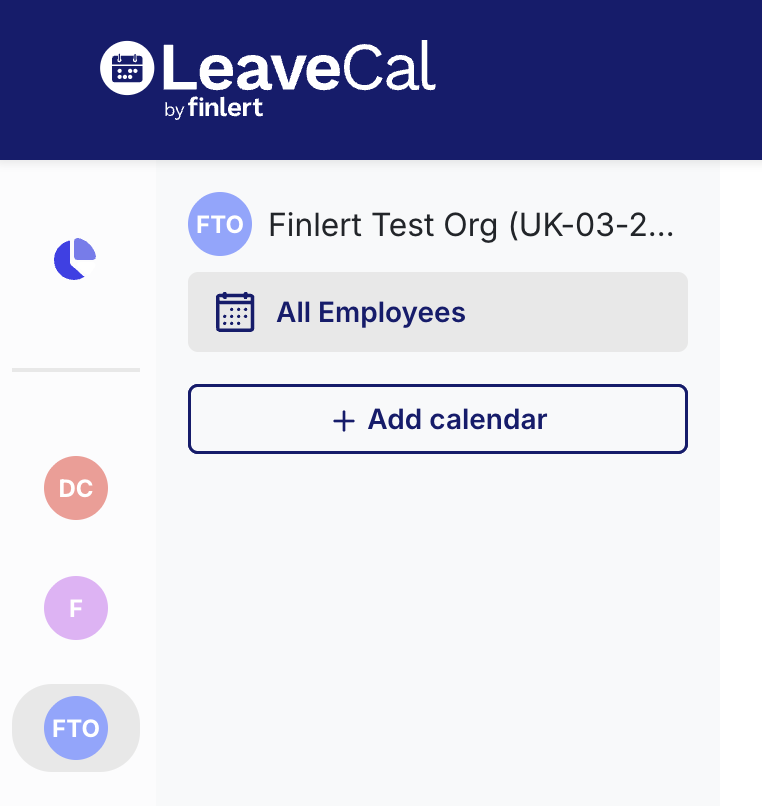
If you have Employee Groups configured in Xero, then when you press '+ Add Calendar' in LeaveCal you can select the Employee Group and we'll make a sub-calendar for just those Employees in that group.
This will take you through a calendar creation wizard where you can setup a calendar for exactly who you want.
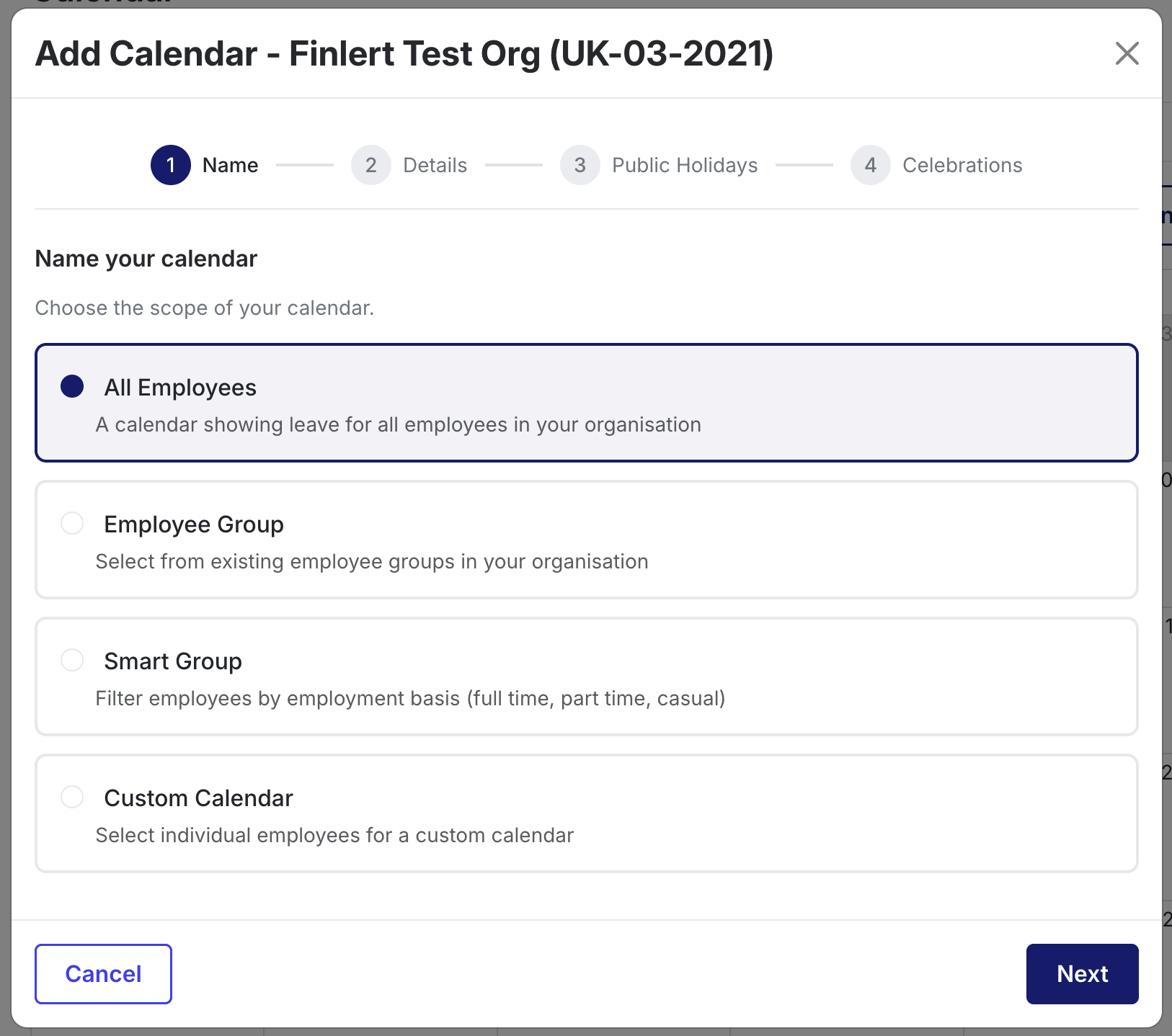
All Employees will include everyone in the Xero organisation. Employee group allows you to choose from specific employee groups setup in Xero. Smart groups allow you to setup a calendar for a range of separate criteria. Or a custom calendar which allows you to individually select who should be a part of the calendar. All of these groups will automatically keep themselves up to date with the right employees as data changes from Xero.

If you select custom calendar you can now select exactly which team members you want to include in the team using the switches.
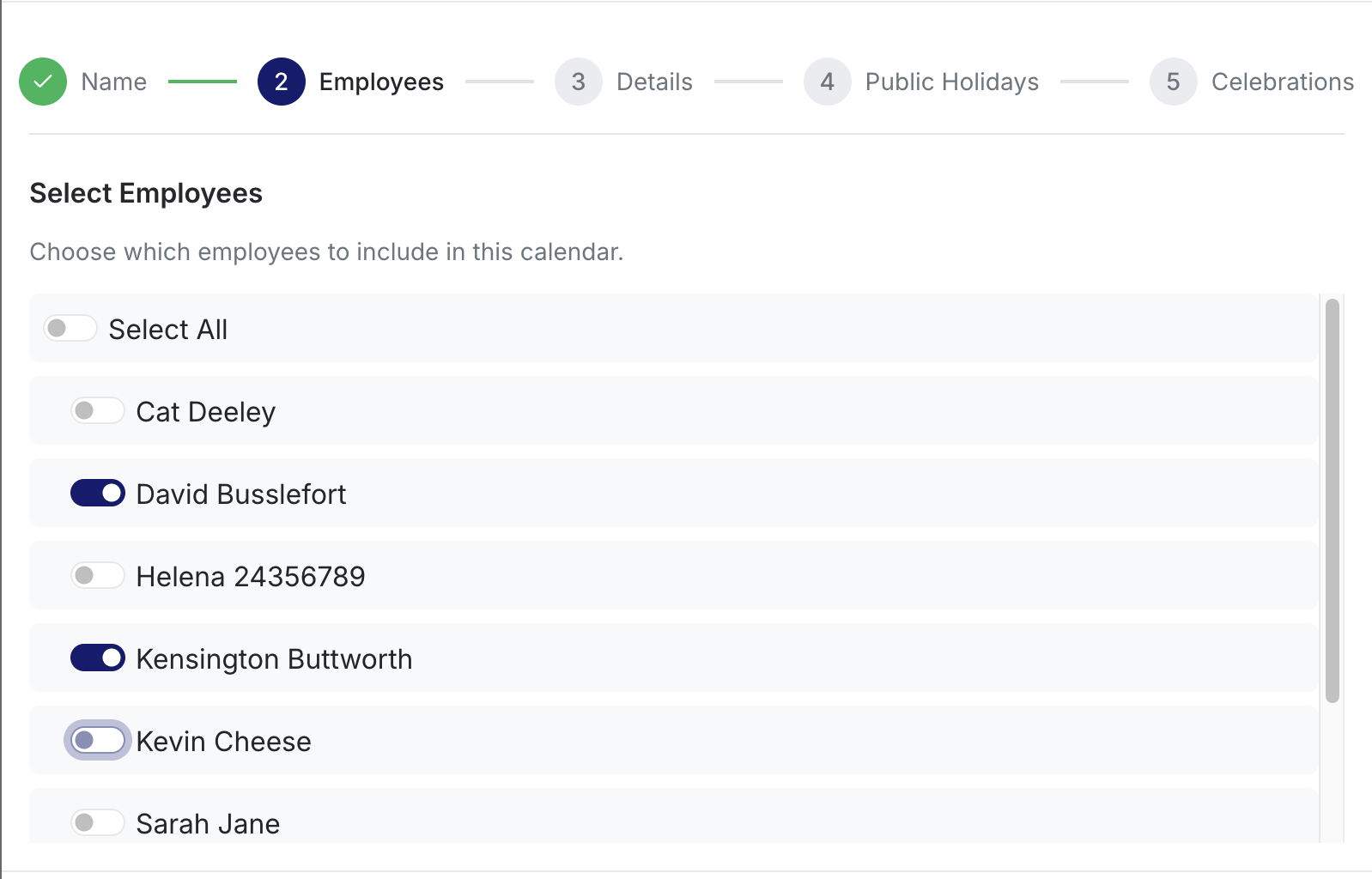
Then step through the rest of the set up.
Once complete you will be able to access your new team calendar in the top left sub menu.
Still stuck? Get in contact.